Showing posts with label vCOps Configuration. Show all posts

Thursday, July 24, 2014

Part 12 - Deleting Unwanted or Stale Resources from vCenter Operations Manager!

In a number of projects I do, I have always noticed that customers have tried to add their test & development vCenter servers, remote site vCenter servers etc. to their production vCOps instance to see if vCOps is able to monitor all the instances across the sites. This could also happen if you by mistake register all the vCenter Servers in a Linked Mode Configuration on the admin page. Later on they realized that they want to use vCOps only for one of the sites and then got rid of the other vCenter Servers.


Now as good as it sounds, it does not really help the vCenter Operations Manager Database as this can result into a number of junk values in the databases which will not be cleared off unless you tweak certain advanced settings in the vCOps collector properties.


Let's have a look at two methods which can adopt to do this. One is manual and the other one in automated. I will show you both and leave it up-to you to chose what you think is right for your infrastructure.


Option 1 - Manually remove resources from Environment Tab

1- Login to vCOps Custom User Interface (Only available with Advanced and Enterprise Edition)

2- Click on Environment - > Environment Overview

3- Here you can see all the Resources which are registered with your instance of vCOps. For resources which you do not require or are stale, select them and click on the Delete Resource icon as shown below:-


Needless to say that this is painful if you have added multiple sources and you are not even sure what should stay and what should go away. If that's the case follow Option 2.

Option 2 - Editing Collector Properties for Deletion of Stale Objects

1- Login to vCOps AnalyticsVM via a ssh client such as putty.

2- Browse to the following directory 
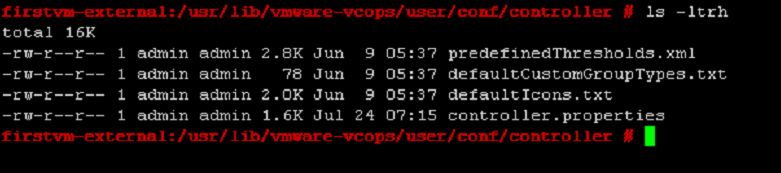

3- Edit the controller.properties file and look for the following values which define the retention period of stale or absent objects


deleteNotExisting = true - Simply means that you want to do a cleanup of resources which are non existing in the vCOps instance. This setting is set to FALSE and should be changed to true for you to cleanup all the junk you don't want.

deletionPeriod = 15 - If the policy is set to delete non existing resources, then they will be deleted post 15 days of there non-existence as per this setting. Change this to 1 Day if you want to cleanup junk resources within 24 hours.

deletionSchedulePeriod = 24 - This setting defines how often vCOps checks for Not Existing Resources.


Once you are done with editing the file, just sudo to the admin account and restart the vCOps Services as shown below


Guess what you are DONE :-)

I would highly recommend that if you are not proficient with Linux commands and editing files, then use Winscp to browse to these files, download them, edit them on a text editor and then upload them back in the system. Stay tuned for more vCOps fun coming your way soon... Till then!

*******************************UPDATE 29-July-2014*******************************

As per the comment from Jon Hemming, I am updating the article with the the information shared by Jon. As per the VMware KB 2020638 originally written by him, he has mentioned:

With vCOPs 5.7, deletionPeriod = 15 is renamed to deletionPeriodInHours = 360 and is, by default, commented. Ensure to uncomment this line.

Thanks Jon :-)

Share and Spread the Knowledge!


Wednesday, March 26, 2014

Part 8 - Setting up vCOps Data Retention Policy

In the last post we looked at setting up the advanced parameters for session timeout on Custom & vSphere User Interfaces. Let us look at another advanced setting which requires a tweak in most of the cases.

In this post of this series, I will post the steps you need to follow in order to change the Data Retention Period on vCenter Operations Manager FSDB. If you have read this series and are aware of the architecture of vCOps, you would know that the FSDB a.k.a the File System Database is a DB in the vCOps Analytics VM which is the home for all the raw data which is collected by the collectors. You can read about data collection process in a post I did back in June 2013.

By default vCOps retains this data for a period of 6 months (180 days). Based on this retention policy you size the vCOps vAPP as shown in my sizing post here. Their could be multiple use cases where you want to decrease or increase the data retention for the collected metrics in your environment. Some of them which I have experienced with the customer are:-

-> Compliance Requirement for Retaining Data for 1 Year. 
-> Resource Constraints on Storage, Network, CPU etc.
-> Multiple Collection Sources doing millions of metrics

I am sure the more customers I speak with, the longer would be that list, but Constraints and Compliance would be still on the top. Without further ado, let's have a look at the steps which you need to follow in order to change the Data Retention policy!


1- Login to the Analytics VM using root credential via a SSH client such as PUTTY. 

2- Browse to the following directory

/usr/lib/vmware-vcops/user/conf/analytics 

3- Locate the file advanced.properties

4- Edit the file using VI or Nano. (Note - If you are not comfortable with CLI use winscp to browse to this file and edit using notepad.)

5- Locate the following entry in this file 

#old date range for FSDB. Default is 180 days
oldDataCleanerDateRange=180

6- The value 180 denotes the 6 month of time for data retention. Change this value to a desired number.


Disclaimer - While doing this is supported, there are certain risks/impacts of this change. Would highly recommend that you go through this paragraph from VMware Documentation to understand the impact.

"vCenter Operations data retention should be configured according to the amount of resources and the cyclic needs for data patterns. The system analyzes and learns the normal behavior when allowed to use long histories of data. This allows the system to learn weekly, monthly, quarterly, and yearly patterns. For example, to learn the normal behavior for quarterly patterns, the system requires 120 days retention. Storage grows quickly with the number of resources configured in the system. The FSDB can become corrupted if the storage space is exhausted."


I will close this post here. In the next post we will look at various authentication methods via which users can login to vCenter Operations Manager.

Stay Tuned!!


Share & Spread the Knowledge!!