Wednesday, November 23, 2016

#vROps Webinar Series – Part 11 – Getting more out of #vROps with PowerCLI

Another month has gone and Christmas is now looming large! It has been extremely busy but we still want to continue with the momentum of webinar series getting to the business end of the year. This time around we will talk about getting more out of vRealize Operations Manager using PowerCLI.
This session we will be joined by Vinith Menon who will show us all kinds of PowerCLI goodness.
So without further a do, save the date in your calendars and join use for the next episode of vRealize Operations Webinar Series 2016.
Day & Date : Friday, 25th November 2016
Time : 1:30 PM – 2:30 PM (SGT)
Event : vROps Webinar 2016
Topic : Part 10 : A Deep Dive into vROps and PowerCLI
Speakers : Simon Eady / Sunny Dua / Vinith Menon
Due to last minute constraints we are using Xtravirt’s Webex so a big thank you to them for stepping in and help us
WebEx Link : Join WebEx Meeting
NOTE – Don’t forget to mark your calendars by saving the Date!! Feel free to forward the invite to anyone who might be interested. It’s open to all!!
Sharing & Spread the Knowledge!!

Friday, October 28, 2016

vROps Webinar Series 2016 - Part 10 - A Deep Dive into vROps API

Time to publish the recording for the 10th episode of vROps Webinar Series. This time around we spoke about vRealize Operations Manager Resful API and how to use it. Post 20 minutes of slide-ware, I jumped into the lab and thanks to the demo god, we demonstrated a number of use cases and browsed through the documentation to make it easier for you to consume and use the same.


So without further ado, here is the recording for this session:


Note : It is recommended that you watch the video in HD quality for a great experience.

Friday, October 21, 2016

vROps Webinar 2016 - Announcing Part 10 : A Deep Dive into vROps API


The month has been extremely busy but we still want to continue with the momentum of webinar series getting to the business end of the year. This time around we will talk about vRealize Operations Manager API. API is your friend if you are trying to automate things which you would normally do on GUI. While GUI is a favorite of most, the geeks prefer the API since that helps them to programatically initiate tasks and go out for a coffee. By the time they are back from the LONG coffee break, the work is done :-)

This session would help you understand the API framework of vROps and as always we would jump into the lab to run a couple of scenarios which we would want to access through API and Geek Out!!


So without further a do, save the date in your calendars and join use for the next episode of vRealize Operations Webinar Series 2016.

Day & Date          : Friday, 28th October 2016

Time                     : 1:30 PM - 2:30 PM  (SGT)

Event                    : vROps Webinar 2016

Topic                     : Part 10 : A Deep Dive into vROps API

Speakers               : Simon Eady / Sunny Dua

WebEx Link          : Join WebEx Meeting


NOTE - Don't forget to mark your calendars by saving the Date!! Feel free to forward the invite to anyone who might be interested. It's open to all!!


Sharing & Spread the Knowledge!!


Monday, October 17, 2016

Did You Know #5:Customizing Summary Pages on vRealize Operations Manager!

With this article of the Did You Know series, I wanted to share a GEM of a feature using which can enhance your user experience and user interface of vRealize Operations Manager. If you have used vRealize Operations Manager, you will notice that the product has summary pages for each object type. For instance if you are on vSphere World Object, you would see a Summary Page which looks like this:


In-fact, if you click on any other object types such as vCenter, Datacenter, Clusters, Hosts etc. you would see a similar summary page showing the Health, Risk & Efficiency of the Object Type which you have selected. The Health, Risk & Efficiency badges on this page are colored based on the Alerts triggered on the Object type which you have selected on the navigation pane in the left.

While this view is useful to summarize the alert status, this might not be the default page which you want to see when you select an object type. If that is the case, vRealize Operations Manager provides you the option to change this default summary page to the dashboard of your choice (I have seen this feature on vROps 6.2 and 6.3). In my opinion this is a super cool feature as now yo can create your own summary pages using vROps Custom Dashboards and then use them as default summary pages (only applicable to license editions where you can create custom dashboards)

Here is how you do it:

Create a custom dashboard for the object type which you want to chose as the summary page beforehand.

1- Login to vRealize Operations Manager using Administrative Privileges. (preferably admin account).

2- Click on Content -> Dashboards -> Blue Wheel Icon -> Manage Summary Dashboards


3- Click on the drop-down to select the Adapter Type under which you want to select an Object Type for which you want to change the summary page.


4- In my case I want to change the Home Page for the vSphere World and hence I will select the vCenter Adapter, which will list all the object types under that adapter.


5- We will select the vSphere World from this list and click on the gauge shaped icon to Assign a Dashboard for this Object Type.


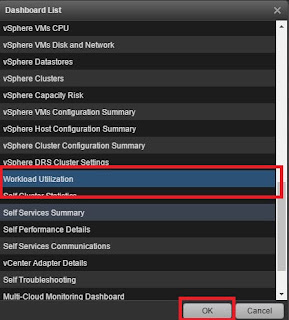
6- Once I click on that icon, I will get a list of all the dashboards I have in my vROps instance. I will go ahead and select the dashboard which I wish to chose, in this case I will select the Workload Utilization dashboard and click on OK to save the changes.

6- Let's go back to vSphere World and see how the summary page looks like after this change. Click on Environment -> vSphere Hosts and Clusters -> vSphere World.

You can now see a completely different home page than what you usually see. 


This will help you enhance your instances of vROps with you self customized dashboards and help you jazz up your deployment with personalized views at each object level..

Hope this helps with day to day data-center operations using vRealize Operations Manager.


Stay tuned for more goodies!!


Thursday, October 13, 2016

Did You Know #4 - Restricting Virtual Machine Collection on vROps!!

Welcome back to the part 4 of the did you know series on vRealize Operations Manager. This series is all about small nuggets on vRealize Operations Manager, which can help you with day to day IT operations in your Software Defined Datacenter.

With this article, I wanted to make you aware of a setting which allows you to filter out virtual machine objects from collection in vRealize Operations Manager. While this was always possible by using a collection user with limited rights on objects in vCenter, this feature is natively available with vROps 6.1 and beyond.

With this option, you can limit the number of virtual machines from collection on a vCenter Adapter. In my case, I used this option to disable collection of Virtual Machine Object completely. This would mean that I would only collect data from the remaining objects which is vCenter Server Object, Datacenter Object, ESXi Hosts, Datastores etc. So basically everything except the VM objects. The use cases for this deployment model are following:-

I- Infrastructure Monitoring - In this case the IAAS provider just wants to leverage vROps for monitoring the underlying infrastructure and have no responsibility of monitoring the VMs

II- Centralized Dash-boarding & Reporting for large scale deployment - Another use case is to have a centralized vROps with reporting and dash-boarding capabilities, especially large scale deployments. In cases where an organization has multiple sites across the globe, they might not want a centralized vROps instance to avoid traffic flowing across the globe. While they would want to monitor individual sites with a full fledged vROps deployment, they might want to collect infrastructure level data into a centralized vROps for reporting purposes.

Please Note: It is recommended that you DO NOT disable VM Object collection without understanding the full impact of this change. While this will give you scalability, it will not bring VM Data which might be used for calculating metrics at Host or Cluster level. Please use this only for specific uses cases and preferably in a development environment to understand the full impact, before rolling out in production.

I am sure there would be other uses cases which could be solved with this feature. Here is where you can set it up:

In case of an EXISTING deployment:

1- Login to vROps with administrative privileges (preferably admin account) 

2- Click on Administration -> Solutions

3- Click on the VMware vSphere 

4- Select the Adapter Instance where you want to change under the "VMware vSphere Solution Details" and click on the wheel shaped Configure Icon.

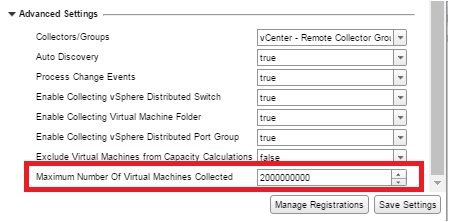
5- Expand the advanced settings of the adapter. Here you will see an option of "Maximum Number of Virtual Machines Collected"  with a default value of "2000000000". This is the virtual machine count you can collect with this adapter instance.

6- To disable VM collection completely, change this value to "0" (ZERO)


7- Click on Save Settings to save the new setting.


In case of a NEW deployment:

The steps to be followed in case of a new deployment will be exactly the same. You would define this number at the time of configuring the adapter instance for the first time.


Hope this helps with day to day data-center operations using vRealize Operations Manager.


Stay tuned for more goodies!