Showing posts with label VMware. Show all posts

Tuesday, April 14, 2020

vRealize Operations Cloud - The one stop shop for multi-cloud operations is LIVE


About vRealize Operations Cloud:


Along with vRealize Operations 8.1, VMware just made the vRealize Operations Cloud service go live. VMware vRealize Operations Cloud is a cloud-delivered service that allows a customer’s infrastructure and operations teams to manage the enterprise’s VMware Cloud environment, whether in the customer’s own on-premises software-defined data center (“SDDC”) or in the customer’s hosted environment, such as VMware Cloud on AWS.

·       vRealize Operations Cloud has the same feature capabilities as the On-premises vRealize Operations Manager 8.1, with the operational agility and benefits of SaaS

·       The service is offered on the Cloud Service Platform thereby providing a consistent experience to customers who are consuming other VMware Cloud Services and leveraging common services for Identity Management, Billing, and Support.

·       vROps Cloud provides integrations with other vRealize SaaS Offerings namely vRealize Log Insight Cloud, vRealize Network Insight Cloud, and vRealize Automation Cloud

·       Exclusive in vROps Cloud: View logs in context of the selected object in vRealize Operations Cloud; Launch into the full capabilities of vRealize Log Insight Cloud at the click of a button


Purchasing vROps Cloud:


Refer to vROps Cloud Pricing for the latest information on pricing.


vROps Cloud Documentation & Resources:


Friday, October 18, 2019

Everything you need to know about the vRealize Operations 8.0 release

The wait is over. vRealize Operations 8.0 is NOW Available. Here are my prescribed next steps:


4- Ensure to run the Upgrade Assessment Tool, available on the download page:


      5- Check the compatibility with management packs you might have in your environment - https://www.vmware.com/resources/compatibility/search.php?deviceCategory=vrops
    
      6- Check product compatibility matrix (just in case) - https://www.vmware.com/resources/compatibility/sim/interop_matrix.php

      7- Good news – Most of the VMware solution packs that go with vROps are already released and here are the links:


Solution Name
Release Notes & Download Link
vRealize Operations Management Pack for CloudHealth by VMware
vRealize Operations Management Pack for Storage Devices
vRealize Operations Management Pack for VMware Cloud on AWS
vRealize Operations Management Pack for NSX-T
vRealize Operations Management Pack for vCloud Director
vRealize Operations Management Pack for Skyline
vRealize Operations Management Pack for Container Monitoring
SDDC Health Monitoring Solution
vRealize Operations Management Pack for NSX for vSphere
vRealize Operations Management Pack for vRealize Orchestrator
vRealize Operations Management Pack for VMware Identity Manager
vRealize Operations Federation Management Pack
vRealize Operations Management Pack for VMware Integrated OpenStack
vRealize Operations Management Pack for Cloud Provider Pod


Happy Installing/Upgrading.

Hope this article helps you. Please share your comments in the comments section below or follow me on twitter to be updated on similar content - @sunny_dua.


Tuesday, October 8, 2019

Leveraging "Cloud Type" to configure VMware Cloud vCenter in vRealize Operations

With this post, I wanted to share a quick tip which one should follow while adding a vCenter Server running in VMware Cloud on AWS. With vRealize Operations, you can simply point to a VMC based vCenter and gather both vCenter and vSAN metrics from a VMC vCenter.

While adding the endpoint is an extremely simple task in vROps, for VMC, currently, you have to take an extra step to ensure that the vCenter is recognized as a VMC vCenter. This additional setting is called the Cloud Type advanced setting. This setting is available in vRealize Operations 7.0 and above. In vROps 8.0 though this setting would be under a new feature called Cloud Accounts.

With vRealize Operations 8.0 which has been announced at VMworld US 2019, one of the key features which would help you to easily configure endpoints to monitor such as vCenter, AWS or Azure is Cloud Accounts.

Cloud Accounts are a common construct between vRealize Operations 8.0 and vRealize Automation 8.0 as well, which means if you have configured endpoints for provisioning in vRA 8.0, they would automatically be available to import inside vROps 8.0, given vRA and vROps are integrated. More on this would come out in blogs and documentation as the products are GA'ed.

Well, coming back to how we could configure a VMC vCenter cloud account. Here are the steps:

1- Login to vROps with a user with appropriate privileges to create a cloud account / Adapter instance.

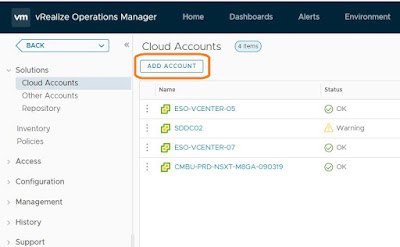
2- Click on Administration -> Cloud Accounts

(Note for versions prior to vROps 8.0, the correct path would be Administration -> Solutions. You will select the vCenter Solution and edit the same to add an adapter instance. The rest of the steps remain the same. See this documentation link for more details)

3- Click on Add Account


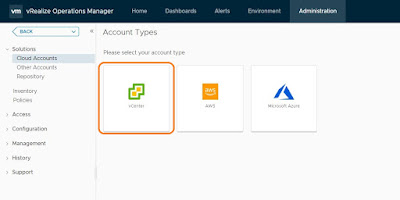
4- Select vCenter 


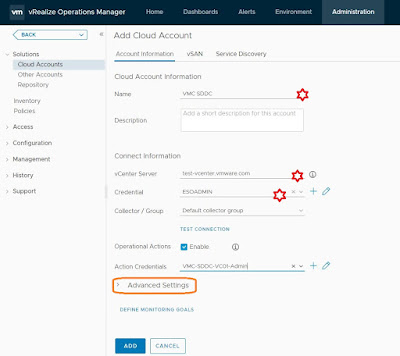
5- Fill in the details of your vCenter as shown below, and then click on Advanced Settings as shown below.


6- Under Advanced Setting, you would notice an option called Cloud Type
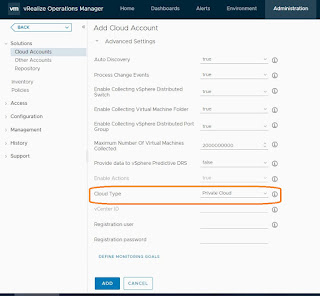


7- For Cloud Type, the default option is "Private Cloud". This is to be chosen when you are running your vCenter on-prem and you are managing it. "Hosted Private Cloud", when a service provider is hosting your vCenter and "VMware Cloud" option when VMware is managing your vCenter.

Select VMware Cloud on AWS


8- If you are running vROps 7.5 or prior, you will save this adapter configuration and then configure the vSAN adapter to collect data from vSAN in VMC. However with vROps 8.0, this is a simple one click enable option within vCenter Cloud Account.

9- Once you have chosen the Cloud Type, click on the vSAN Tab as shown below and enable vSAN monitoring by using the toggle button.


10- You may click on Test Connection or just click on Add to save the Cloud Account and create the required adapter instances to start the collection.


Choosing the right cloud type is important to ensure that vROps understand the vCenter endpoint and apply the correct business logic for use cases such as compliance, costing and monitoring.

I hope this helps... More to come on vRealize Operations 8.0 as it gets ready for a General Availability...

Please share your comments in the comments section below or follow me on twitter to be updated on similar content - @sunny_dua.


Friday, October 4, 2019

Copy and paste widgets from your favorite dashboards in vRealize Operations

While creating custom dashboards in vRealize Operations, there are times when you want to use the same widget type to be re-used within a dashboard multiple times. At the same time, you might want to re-use some of the widgets which you might like in the out of box dashboards and want to leverage the same to create your own dashboards.

In the past, you would do this by going through a lot of steps to literally recreate the entire widget and configure it to the tee. Depending upon the complexity of the customization, this could take from minutes to hours, especially if you are working on creating a dashboard with a number of widgets.

How cool it would be if you can just copy your favorite widgets from a pre-existing dashboard or configure once and replicate a widget multiple times within the same dashboard just by using simple copy and paste functions... 

Before vRealize Operations 7.5, this sounded like a BEAUTIFUL DREAM πŸ˜‚

With vRealize Operations 7.5, we introduced a gem of functionality which in my humble opinion was lost in the huge list of amazing new features that came out with this release. The "What's New" section of release notes seems to be 4 pages long.

Within the release notes, you will notice a feature related to Dashboards and Widget Enhancements which talks about the functionality of copying and pasting widgets. Here is a screenshot from the release notes...


Feature Details:

As the release note mention, this capability allows you to pick up any dashboard, edit the dashboard and then select widgets within that dashboard by clicking through them, just like how you would select photos from a folder. You can select one or multiple widgets at the same time. Once selected, just use the CTRL+C on your keyboard or use the Actions menu to copy the widgets.

Once copied, you can open a new dashboard canvas in the same or a different browser session and then past the copied widget using CTRL+V or Actions -> Paste from the menu.

You would just need to redo interactions if any, else everything else will be pre-configured based on the base widget. This includes both widgets and views. Yes, you read it right.


Let's have a quick look at how this works:


Here is my favorite Capacity Utilization dashboard. I like some of the widgets in this dashboard which would take hours to configure manually. Let me just edit the dashboard and copy what I like into a new dashboard.

1- Launch the source dashboard you want to copy widgets.

2- Click on Actions -> Edit Dashboard


3- Select the widgets you want to copy. Notice how they are highlighted with a blue outline as I select them.


4- Click on the actions button as indicated below to select Copy Widgets(s) or use the keyboard shortcut for copy.


5- Now you can cancel out of this dashboard as the copy is done.

6- Click on the Actions Menu under dashboards and click on Create Dashboard.

7- Once the new dashboard canvas opens, click on Actions -> Past Widget(s)


Just like that.. It's done in seconds. Saving you a number of hours and getting you to your goal of getting that perfect dashboard you always wanted πŸ˜ƒπŸ˜ƒπŸ˜ƒ

From this point onwards, you can make the delta changes you need in your target dashboard and setup any interactions if applicable and you are good to go..

To find some cool dashboards you might want to copy from, explore the vRealize Operations community created dashboard repository on VMware Code.

Hope this article helps you. Please share your comments in the comments section below or follow me on twitter to be updated on similar content - @sunny_dua.


Monday, March 25, 2019

How to recover vRealize Operations admin account password

With vRealize Operations 7.0, VMware introduced a very simple yet powerful feature which would allow you to reset the built-in admin password of your vRealize Operations instance using recovery settings. I believe this is an extremely useful feature, as I have seen numerous deployments where admins have forgotten the admin password and are forced to login through the root account and run commands to reset the password.

Note - You can follow the procedure mentioned in this KB article to reset a forgotten admin password through SSH.

I would rather use this new feature and keep the password recovery process as simple as possible. Simple in this case provides security as well, since you do not have to share root passwords and run commands.

With vRealize Operations 7.0, once you login to the CASA (Cluster Administration) UI a.k.a. Admin UI, you will find a new section called "Administrator Settings".


This screen allows you to "Change Admin Password". At the same time you can enter the password recovery settings to ensure that in case you lose your admin password, you can use the recovery email to recover the password. In the above example, I have leveraged my SMTP settings to configure this.

Once saved, on subsequent admin login screen, you will notice an option of "Forgot Password"


Once you click on the forgot password option, you will receive an email on the registered recovery account email. Here is how the email will look like:


Upon clicking on the reset password link, you will be redirected to a page where you can reset the admin password.


Once the password is SET, you are good to login with the new password in the subsequent logins.

I think this simple addition would be really helpful with enhancing your operational efficiency. Go ahead and configure the recovery settings on your vROps instances before you forget your admin account password :-)

Share and Spread the knowledge.


Monday, March 18, 2019

Reset out of box content post upgrade or install of vRealize Operations

I have been several times about this and hence I thought I would quickly blog about this. With vRealize Operations, the out of the box content owned by VMware usually gets a refresh with each release. If you wish to get the new updated content, then you can leverage the reset out of box option during upgrade. I wrote about this more than 3 years ago here and this is still relevant.

I have been asked that if one needs to reset the out of box content later on then it is possible. The use cases around this are things like, you have modified out of box symptoms or alerts and you want to restore back to factory settings, or you have accidentally deleted some out of box content which you want to recover.

You can rest out of box content easily per solution. A solution is also known as a management pack which helps you connect to various endpoints to collect data and run analytics.

Here is an example on how you can reset content for vCenter solution:

1- Login with admin privileges or the built-in admin account.

2- Click on Administration -> Solutions.

3- Find the solution for which you want to reset out of box content.

4- Click on the Configure option.

5- On the configuration page click on the option highlighted below to reset out of box content.


6- Read the warning on the dialog box, check the option to confirm and click on ok to take this action.

Note - This process can take up to 30 minutes and will affect the data collection as stated in the warning.


Hope this helps.

Share and spread the knowledge.


Tuesday, February 5, 2019

Automatically place ESXi hosts in maintenance in vROps using properties

This has come up in a number of discussions with customers and a few VMware field employees and hence I wanted to blog about this and use this as a standard answer going foward :-)

Use Case - An administrator wants to disable alerts on a ESXi host which has been put into maintenance mode in vCenter. This is to avoid any alerts on this ESXi hosts inside of vROps, while the admin wants to continue to collect the metrics on this ESXi host.

Goal - The goal is to do this automatically without any manual changes in vROps. As soon as a host goes into maintenance in vCenter, vROps should know this and should stop alerting on the host in vROps.

Solution - This can be achieved by using Custom Groups and Policy and a one time configuration.


1- Create a new policy in vROps named "Hosts in maintenance policy". This policy can be created under the default policy.

Go to Administration -> Policies -> Policy Library 

2- Select the default policy and click on the + sympbol to add a new policy.

3- Give it a name and description as shown below.


4- Click on Alerts and Symptom Definitions and filter the list of aletrs with only host system alerts. We want a filtered list so that we can disable these in one go.


5- Now press CTRL + A on the keyboard to select all of them, you can also click on Actions -> Select All.

6- Click on Actions - > State -> Disable 


7- Click on Save and now you can see he new policy under your default policy.


8- Create a new custom group named "Hosts in Maintenance". Use the following creiteria to dynamically add members to this custom group based on ESXi host property which vROps collects every 5 minutes.

Click on Environment -> Custom Groups -> Click on the + Sign to add a new custom group.

Make sure to select the policy "Hosts in maintenace policy" which we created earlier.


9- Click on Preview to see if you are getting results. If you have any hosts in mainteance moed in your environment, you will see results like me :-)


10 - Finally go into Administration -> Policies -> Active Policies and set the newly created policy at priorty 1 rank.


Now, as soon as you will put hosts into maintenance mode in vCenter, within the next 5 minutes they will be be discovered as being in maintenance inside vROps and they will be added into the cutom group. Once they are a part of the group, the maintenance policy with all alerts disabled will be applied to these hosts and you will not see any alerts on them in vCenter, till the time they are in maintenance. Once they are out of maintenance, they will be moved out of this group subsequently. All of this would no longer require any manual intervention, once configured.

Do note, that if you add any new alerts (in future) related to hosts, you would need to make sure that they are disabled in this policy.

Hope this helps...

Share and spread the knowledge..


Monday, October 15, 2018

Ability to transfer the ownership of dashboards with vRealize Operations 7.0

There have been several amazing changes in the realm of dashboard management in vRealize Operations 7.0. The very first one in my list of favorites is the ability to transfer dashboard ownership.

In the previous releases of vRealize Operations, one can create and share dashboards, however if a user must be removed from vRealize Operations for any reason (leaving the organization or transferring to a new role), he/she would not be able to transfer the ownership of their dashboards which they have created. This means that, in order to maintain their dashboards, one has to clone them and reshare them, which can be painful if you are dealing with a number of dashboards. Our awesome engineers decided to reduce this pain by introducing a simple button in the UI to seamlessly transfer the ownership of dashboards. So now if a user is planning to leave, he/she can easily transfer their dashboards to other users or the built-in admin account. This solves a big operational hassle.

Let's look at how it is done:

1- Click on Dashboard - Actions - Manage Dashboards.

2- Select one or more dashboard from the dashboard list which you want to transfer the ownership for.

3- Click on the actions tab and Transfer Dashboard.


4- Select the user to whom you want to transfer the ownership.


5- Click on Ok to confirm transfer. 

Easy Peasy....... The new owner now has all the power and privileges to manage this dashboard. Make sure you chose a responsible person as a new owner as "With great power comes great responsibility" πŸ’ͺπŸ’ͺ

Oh, by the way, while you are transferring the ownership, the dashboard sharing remains the same and hence no viewer/consumer of the dashboard is impacted. It is like vMotion of the dashboard rights from one user to another without impacting the consumers πŸ˜‹πŸ˜‹πŸ˜‹

Another important thing to note is that the built in "admin" account has permissions to transfer the ownership of any dashboards.

In another post I am writing, I will share details around managing content of a user (dashboards, report schedules), who is accidentally deleted from the list of users. Stay tuned for that one as well.

Share and spread the knowledge...


x

Wednesday, October 10, 2018

Using the compare to previous period option while troubleshooting with vRealize Operations

One of the less known feature of vRealize Operations is to visualize data patterns and compare them against previous time periods of same interval. This feature helps you to easily detect changes in behavior of a workload a.k.a anomalies which could be a result of an event leading to an underlying performance problem.

Let's explain this with an example. I am currently looking at the CPU Usage of one of my virtual machines here using a metric graph. This is the last 7 days worth of data showing the regular patterns of how CPU is being used. You can see the peaks and valleys. Upon observing closely, you can see that the data patterns are pretty consistent.


Imagine, I need to quickly look at how was the behavior of this metric at exactly the same time-period A WEEK AGO. I want to compare to see if things have changed, or is their any anomaly in the data pattern..

Alright, I will click on the calendar icon and from the second date time control chose 1st Period:


Let's click on GO and see what happens.


oooh.. look at that, I am now comparing to a previous period.. But this seems a little harder to compare in this mode.

Let's click on the split charts option to compare these charts in a single graph:


Bingo... Look at that... We immediately found atleast a couple of data points where the CPU Usage is abnormal as compare to what it is this week.


If by now, you are thinking, what happened the week before that, then you my friend are thinking exactly like me :-)

Let's get one more week in by adding "previous period 2".


Easy Peasy... A quick and easy way to get value out of vRealize Operations.

Well, I hope this gives you some ideas to how manual troubleshooting which ofcourse is a day to day operation done by admins and architects can become increasingly simple yet effective by using these hidden gems or vRealize Operations.

Share and Spread the knowledge and do share your troubleshooting techniques with vRealize Operations....


Sunday, October 7, 2018

How to embed vRealize Operations dashboards for easy information sharing.

One of the most πŸ’–lovedπŸ’–feature of vRealize Operations 7.0 has been the new capability of sharing dashboards with URL. The following blogpost explains the options around dashboard sharing. In this post, I wanted to share a quick example on how you can use the embed feature of dashboard sharing.

Use Case - The use case is pretty obvious. In organizations where vRealize Operations data can be consumed by different departments, BUs, groups etc, the Operations admin can provide embed code with specific dashboard URLs to the consumers of this dashboard. This embed code can be used to embed the dashboard in an external webpage, confluence page, sharepoint, through a simple iframe.

Let's look at an example. We will use a Billing App dashboard which I have created to monitor the CPU Contention and Disk Latency on all the virtual machines which make up the billing application in my organization.


Let's click on the share button and get the embed code for this dashboard. In case of embedding dashboard, I would recommend that you keep the link expiry option to Never Expire for obvious reasons :-)


In my case, I want to embed this dashboard in this blogpost itself. See for yourself. This is a live dashboard from our lab :-)

P:S - I am able to publish a live dashboard on a public blog because my vRealize Operations instance is running on VMware Cloud on AWS. πŸ˜‰πŸ˜ŠπŸ˜‹

Note - You would require to accept the certificate for my vROps instance to see this dashboard in your browser. Click on this link to access the dashboard directly once and then it will be available to view in this blog post - https://35.161.24.145/ui?t=faasnilnyk#b45vkg0q2f

Go ahead and hover over the metric charts and see the live data of all the billing VMs. You can also see historical data by selecting the calendar icon in the widgets.. πŸ‘πŸ‘


Hope this posts helps you undertsand the power of dashboard sharing with vRealize Operations and also allows you to share meaningful data with your peers in your oragnization.

Share and Spread the knowledge.


Friday, July 20, 2018

My VMworld 2018 Plan.


As I type this I feel the guilt of not being able to blog for some time now. As most of you know, I have moved into the Product Management role for vRealize Operations, the role has sucked me into the wave of continuos enhancements which we are doing into the product.

A tremendous amount of time and effort went into closing vRealize Operations 6.6 and 6.6.1 and planning, implementing and releasing vRealize Operations 6.7. I am extremenly excited to see the success of vRealize Ops 6.7 and happy to share that we have not stopped but only doubled down our investments in making Operations simple and immenstly impactful to your IT environments, people, processes and ultimately business.

As always, VMworld would be the place where we will be able to share where we are headed and I thought it would be a good idea to share my VMworld Vegas schedule with you all. If you are preparing your VMworld agenda and looking at what sessions to attend, then here is a quick list of sessions I will be presenting during Breakouts and TAM sessions along with my immensely talented co-presenters :


SESSION INFO

Session ID: MGT2552BU
Submitted to: Both events
Session Type: Breakout Session
Session Title: Troubleshooting Made Easy
Speakers 
Chris McClanahan, VMware (Speaker, Submitter)
Sunny Dua, VMware (Speaker)

Session ID: MGT2621BU
Submitted to: Both events
Session Type: Breakout Session
Session Title: From VI Admin to Cloud Ninja: Top 5 Skills Needed in the Digital Age
Speakers 
John Dias, VMware (Speaker, Submitter)
Sunny Dua, VMware (Speaker)

Session ID: MGT2934BU
Submitted to: Both events
Session Type: Breakout Session
Session Title: Optimize Workload Cost and Performance Using the vRealize Suite
Speakers 
Helen Michaud, VMware (Speaker, Submitter)
Sunny Dua, VMware (Speaker)

Session ID: TAM3779U
Submitted to:
Session Type: TAM Customer Central Deep Dive
Session Title: vRealize Operations 7.0 - Foundation for Self Driving Operations
Speakers 
Kameswaran Subramanian, VMware (Speaker)
Sunny Dua, VMware (Speaker)

Session ID: TAM3841U
Submitted to:
Session Type: TAM Customer Central Deep Dive
Session Title: Intent-Based Workload Optimization with vRealize Operations
Speakers 
Chima Njaka, VMware (Speaker)
Sunny Dua, VMware (Speaker)


With this post, I also promise to come back to my regular cadence of blogging to ensure that I can always have an alternative career of a writer if the world decides to give up on IT :-)

See you at VMworld!!! 😁😁😁