With this post, I wanted to share a quick tip which one should follow while adding a vCenter Server running in VMware Cloud on AWS. With vRealize Operations, you can simply point to a VMC based vCenter and gather both vCenter and vSAN metrics from a VMC vCenter.
While adding the endpoint is an extremely simple task in vROps, for VMC, currently, you have to take an extra step to ensure that the vCenter is recognized as a VMC vCenter. This additional setting is called the Cloud Type advanced setting. This setting is available in vRealize Operations 7.0 and above. In vROps 8.0 though this setting would be under a new feature called Cloud Accounts.
With vRealize Operations 8.0 which has been announced at VMworld US 2019, one of the key features which would help you to easily configure endpoints to monitor such as vCenter, AWS or Azure is Cloud Accounts.
Cloud Accounts are a common construct between vRealize Operations 8.0 and vRealize Automation 8.0 as well, which means if you have configured endpoints for provisioning in vRA 8.0, they would automatically be available to import inside vROps 8.0, given vRA and vROps are integrated. More on this would come out in blogs and documentation as the products are GA'ed.
Well, coming back to how we could configure a VMC vCenter cloud account. Here are the steps:
1- Login to vROps with a user with appropriate privileges to create a cloud account / Adapter instance.
2- Click on Administration -> Cloud Accounts
(Note for versions prior to vROps 8.0, the correct path would be Administration -> Solutions. You will select the vCenter Solution and edit the same to add an adapter instance. The rest of the steps remain the same. See this documentation link for more details)
3- Click on Add Account
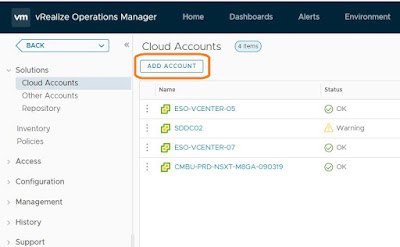
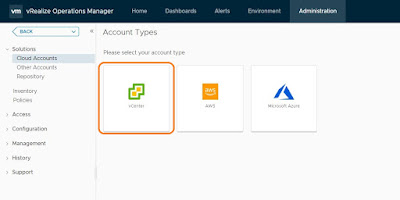
4- Select vCenter
5- Fill in the details of your vCenter as shown below, and then click on Advanced Settings as shown below.
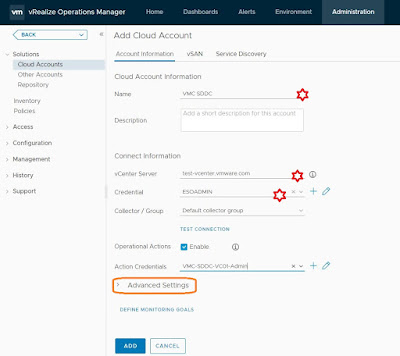
6- Under Advanced Setting, you would notice an option called Cloud Type
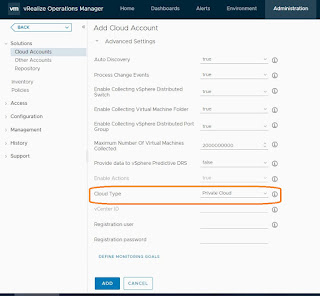
7- For Cloud Type, the default option is "Private Cloud". This is to be chosen when you are running your vCenter on-prem and you are managing it. "Hosted Private Cloud", when a service provider is hosting your vCenter and "VMware Cloud" option when VMware is managing your vCenter.
Select VMware Cloud on AWS

8- If you are running vROps 7.5 or prior, you will save this adapter configuration and then configure the vSAN adapter to collect data from vSAN in VMC. However with vROps 8.0, this is a simple one click enable option within vCenter Cloud Account.
9- Once you have chosen the Cloud Type, click on the vSAN Tab as shown below and enable vSAN monitoring by using the toggle button.

10- You may click on Test Connection or just click on Add to save the Cloud Account and create the required adapter instances to start the collection.
Choosing the right cloud type is important to ensure that vROps understand the vCenter endpoint and apply the correct business logic for use cases such as compliance, costing and monitoring.
I hope this helps... More to come on vRealize Operations 8.0 as it gets ready for a General Availability...
Please share your comments in the comments section below or follow me on twitter to be updated on similar content - @sunny_dua.
While adding the endpoint is an extremely simple task in vROps, for VMC, currently, you have to take an extra step to ensure that the vCenter is recognized as a VMC vCenter. This additional setting is called the Cloud Type advanced setting. This setting is available in vRealize Operations 7.0 and above. In vROps 8.0 though this setting would be under a new feature called Cloud Accounts.
With vRealize Operations 8.0 which has been announced at VMworld US 2019, one of the key features which would help you to easily configure endpoints to monitor such as vCenter, AWS or Azure is Cloud Accounts.
Cloud Accounts are a common construct between vRealize Operations 8.0 and vRealize Automation 8.0 as well, which means if you have configured endpoints for provisioning in vRA 8.0, they would automatically be available to import inside vROps 8.0, given vRA and vROps are integrated. More on this would come out in blogs and documentation as the products are GA'ed.
Well, coming back to how we could configure a VMC vCenter cloud account. Here are the steps:
1- Login to vROps with a user with appropriate privileges to create a cloud account / Adapter instance.
2- Click on Administration -> Cloud Accounts
(Note for versions prior to vROps 8.0, the correct path would be Administration -> Solutions. You will select the vCenter Solution and edit the same to add an adapter instance. The rest of the steps remain the same. See this documentation link for more details)
3- Click on Add Account

4- Select vCenter

5- Fill in the details of your vCenter as shown below, and then click on Advanced Settings as shown below.

6- Under Advanced Setting, you would notice an option called Cloud Type

7- For Cloud Type, the default option is "Private Cloud". This is to be chosen when you are running your vCenter on-prem and you are managing it. "Hosted Private Cloud", when a service provider is hosting your vCenter and "VMware Cloud" option when VMware is managing your vCenter.
Select VMware Cloud on AWS

8- If you are running vROps 7.5 or prior, you will save this adapter configuration and then configure the vSAN adapter to collect data from vSAN in VMC. However with vROps 8.0, this is a simple one click enable option within vCenter Cloud Account.
9- Once you have chosen the Cloud Type, click on the vSAN Tab as shown below and enable vSAN monitoring by using the toggle button.

10- You may click on Test Connection or just click on Add to save the Cloud Account and create the required adapter instances to start the collection.
Choosing the right cloud type is important to ensure that vROps understand the vCenter endpoint and apply the correct business logic for use cases such as compliance, costing and monitoring.
I hope this helps... More to come on vRealize Operations 8.0 as it gets ready for a General Availability...
Please share your comments in the comments section below or follow me on twitter to be updated on similar content - @sunny_dua.