Showing posts with label monitor datastore space. Show all posts

Thursday, July 30, 2015

Monitor Datastores using the Datastore Usage Dashboard in vROps.

In the past I have done a lot of dashboards which help you gauge the Virtual Machine Capacity within your virtual infrastructure. While those dashboards have great value, I am stating to think of the day to day operational issues which a VI Admin has to face and how can he solve those easily with vRealize Operations. If you are a fan of vROps (like I am), you would quickly realize that, the more creative you are with your thought process, the more easy it would be for you to visualize data.

I often think that it is funny that we talk about features and functionalities of a tool, while we forget that at the end of the day every person would use these features differently or rather in his or her own way to get the end result. While vROps gives you a lot of great information upfront, there are times when you would want to be creative and paint your canvas with the data you like and then come out with your own opinions about that data. In other words, while data has a lot of potential, it only becomes useful when you can visualize it as information.

I must admit that my friend Iwan Rahabok is great at doing this and I have a lot to learn from. During our discussions on the VMworld Deck which we are prepping up, we had a lot of such good conversations and I thought it would be worth starting this article with those thoughts.

Having said that, Let me move to this new dashboard which gives you some good insights on the storage utilization of your datastores and the VMs which are consuming that storage. Here is what the dashboard looks like:


So on the left you can see all the datastores which are being monitored by vROps in one list. If you zoom in you can clearly see that I am showcasing the Total Capacity (GB), Used Capacity (GB) and the Free Capacity (GB) of these datastores which can be sorted just by clicking the headings in the resource list.

This is an interactive dashboard, hence if you select any of the datastore for which you want to drill down and check the Virtual machines which are lying on that datastore, then you will be able to see them on the right pane where you will see the name of the virtual machines, and the corresponding parameters of Total, Used and Free space in GB within the guest file system.

You can always edit the widget and add the metrics which you would like to see against the Datastore or the Virtual Machine object. It is as simple as I explained here. While creating this dashboard is not a big deal, for someone who just wants to replicate what I have created, you can download the dashboard from this link. This would be a storagedb.json file which can be used to import the dashboard back in your deployments or vRealize Operations Manager 6.x.


Hope this helps you visualize and manage the datastores better!


Share & Spread the knowledge!


Wednesday, May 1, 2013

Part 2 - Using vCOps Super Metrics & Custom Dashboards to Display Datastore Usage % !!

This post speaks about creating a Custom Dashboard in vCOps using Super Metrics. Please read  the Part 1 of this series to ensure that you know the context.

Here is the link - 

Part 1 - Using vCOps Super Metrics & Custom Dashboards to Display Datastore Usage % !!


Now since we have the Super Metric from the previous post, we will go ahead and use it to create a Custom Dashboard which reflects this metric and helps you to monitor the Datastore Usage %. Here is how you do it:-

1- Login to vCOps Custom UI with a user with appropriate access rights.

2- Click on Dashboards -> Add


3 - Drag and Drop a Heat-map widget from the left pane to the right pane. (To know more about custom dashboards in vCOps, read this Guide.)

4- Give a Name to the Dashboard, Select the number of Columns as 1 and click on OK. (refer to screen shot below.)


5- Now lets configure this widget. Re-size the widget as per your viewing requirement and then click on Edit widget to configure the heat map.


6- Here is how you will configure the Heatmap.


7- And once you click on OK, you have you Heat Map which you can start monitoring to ensure you never run out of space on your datastores.


You can hover over these objects and you will see 2 metrics for each object - Total Capacity & Usage in %age

Here you can clearly see that some of my datastores in my primary DC are actually reaching the 100% usage  and I have some work to do to ensure I have enough free space to keep them green. Since this heat map is auto refreshing, it will ensure that your datastores are continuously monitored for the thresholds you have set for utilizing space on datastores.

If you want to see me present other tips and tricks on vCOps at VMworld 2013, please vote the session which I have submitted. 


For more details refer to - VMworld 2013 - Call for Papers Voting is Now Open. Cast your vote to see your favorite sessions!!


Don't forget to Share and Spread the Knowledge. This will help others!!

Part 1 - Using vCOps Super Metrics & Custom Dashboards to Display Datastore Usage % !!

For the past few weeks, I have been working on vCenter Operations Manager as a part of a project. As always, I am here to share my experience around the work I have been doing and hopefully help the larger VMware community.

As we all know, one of the basic rule of thumb is to ensure that you have a certain percentage of space always available on your datastores to ensure that you cater to the need of all the virtual machines which are a part of these datastores. For example, you would always want your datastores to be around 10% free to ensure that you have enough space for snapshots or any other unplanned requirement. At the same time, you would want to keep an eye what percentage of space is available in your datastores so that you can provision VMs accordingly, of-course I am assuming that you are not using Storage DRS ;-)

Okay so let's quickly jump into action with our use case. We will use vCOps custom dashboard to create a heat-map which would change colors according to free space remaining and would help you to monitor and plan things accordingly in your Virtual Datacenter.

Since, vCOps pulls all the metrics from vCenter, it will be able to pull the Datastore Total Capacity and Used space. Using these 2 metrics, we would create a super metric which would give us the usage %. Using simple math:

Datastore Used % = (Used Capacity/Total Capacity)*100

So how do we create this super metric.

Note:- For someone new to super metric concept, I would recommend you read this white paper from VMware.

1- Login to vCOps Custom UI with a user with appropriate access rights.

2- Click on Environment -> Super Metrics


3- Click on the Add New icon on this window to create a new super metric.


4-  Configure your super metric as shown in figure below


Your super metric will now reflect in the list of available super metrics. Now we need to create a super metric package to attach the same with all the datastores, so that the system automatically can calculate the usage percentage for every datastore which exists or will be added to vCOps, in the future for monitoring. Here is how you create a package and attach it.

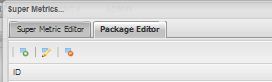
1- On the same screen click on -> Super Metric Package -> Add Super Metric Package.


2-  Give it a name and select the super metric which we create above. Refer to the screen shot below.


3- Put a Check-mark against the given thresholds to make this super metric a Key Performance Indicator (KPI) - I just left the setting to default and clicked on OK.

Now we need to add this Super Metric to all the datastores. This will enable vCOps to calculate this new metric for all the datastores which exist and would be added in the future. This can be done by adding this Super Metric will the Resource Kinds - Datastore. Let's see how we will do it.

1- Click on Environment -> Configuration -> Resource Kind Defaults


2- On this Screen, select the Adapter Kind as VMware Adapter, Select Datastore as the Resource on the left pane and under super metric package select the super metric package which you created before.


UPDATE 19th June 2013 - At this point if you want to collect this super-metric on the existing datastores as well, you need to Click on Environment -> Environment Overview -> Click to Expand Resource Kinds -> Select Datastores.

This will list all the Datastores in the right pane - Select All the Datastores -> Click on the small Pencil on the top to edit all these resources -> In the new window, put a check against Supermetric and then select the Datastore Usage% supermetric-> Click on Ok to save.

Well now you need to wait for the next collection and  performance calculation cycle which is usually 5 minutes. In another 5 minutes we will be able to use this super metric for creating custom dashboards.

We now create a custom dashboard to display this Metric in Part 2.


If you want to see me present other tips and tricks on vCOps at VMworld 2013, please vote the session which I have submitted. 


For more details refer to - VMworld 2013 - Call for Papers Voting is Now Open. Cast your vote to see your favorite sessions!!


Don't forget to Share and Spread the Knowledge. This will help others!!