Thursday, July 24, 2014

Part 12 - Deleting Unwanted or Stale Resources from vCenter Operations Manager!

In a number of projects I do, I have always noticed that customers have tried to add their test & development vCenter servers, remote site vCenter servers etc. to their production vCOps instance to see if vCOps is able to monitor all the instances across the sites. This could also happen if you by mistake register all the vCenter Servers in a Linked Mode Configuration on the admin page. Later on they realized that they want to use vCOps only for one of the sites and then got rid of the other vCenter Servers.


Now as good as it sounds, it does not really help the vCenter Operations Manager Database as this can result into a number of junk values in the databases which will not be cleared off unless you tweak certain advanced settings in the vCOps collector properties.


Let's have a look at two methods which can adopt to do this. One is manual and the other one in automated. I will show you both and leave it up-to you to chose what you think is right for your infrastructure.


Option 1 - Manually remove resources from Environment Tab

1- Login to vCOps Custom User Interface (Only available with Advanced and Enterprise Edition)

2- Click on Environment - > Environment Overview

3- Here you can see all the Resources which are registered with your instance of vCOps. For resources which you do not require or are stale, select them and click on the Delete Resource icon as shown below:-


Needless to say that this is painful if you have added multiple sources and you are not even sure what should stay and what should go away. If that's the case follow Option 2.

Option 2 - Editing Collector Properties for Deletion of Stale Objects

1- Login to vCOps AnalyticsVM via a ssh client such as putty.

2- Browse to the following directory 
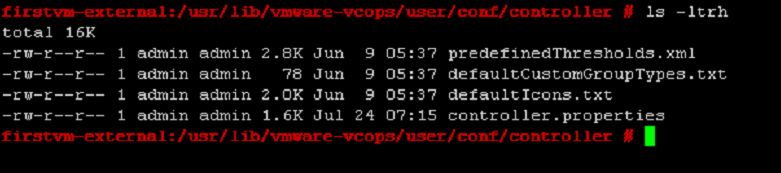

3- Edit the controller.properties file and look for the following values which define the retention period of stale or absent objects


deleteNotExisting = true - Simply means that you want to do a cleanup of resources which are non existing in the vCOps instance. This setting is set to FALSE and should be changed to true for you to cleanup all the junk you don't want.

deletionPeriod = 15 - If the policy is set to delete non existing resources, then they will be deleted post 15 days of there non-existence as per this setting. Change this to 1 Day if you want to cleanup junk resources within 24 hours.

deletionSchedulePeriod = 24 - This setting defines how often vCOps checks for Not Existing Resources.


Once you are done with editing the file, just sudo to the admin account and restart the vCOps Services as shown below


Guess what you are DONE :-)

I would highly recommend that if you are not proficient with Linux commands and editing files, then use Winscp to browse to these files, download them, edit them on a text editor and then upload them back in the system. Stay tuned for more vCOps fun coming your way soon... Till then!

*******************************UPDATE 29-July-2014*******************************

As per the comment from Jon Hemming, I am updating the article with the the information shared by Jon. As per the VMware KB 2020638 originally written by him, he has mentioned:

With vCOPs 5.7, deletionPeriod = 15 is renamed to deletionPeriodInHours = 360 and is, by default, commented. Ensure to uncomment this line.

Thanks Jon :-)

Share and Spread the Knowledge!


Saturday, July 5, 2014

VCDX – It’s a Journey and NOT a Destination!


It is 4th of July and the entire US is enjoying the holiday, while I am just travelling back post some exciting meetings with some of the large customers in India on how they should go about virtualizing their S-A-P infrastructure. The animated discussions on SAP HANA were not only satisfying, but were also fulfilling as I am getting deeper in my new role of a Solution Architect, here in India with VMware.

It all started in the year 2007, when I first heard about the term Virtualized servers which were using the storage I use to support in HP. “Really, you have shared the same LUN between 30 Windows and Linux virtual machine” is what I asked a customer with a wicked grin on my face, thinking that how people don’t understand the basics of storage – HUH!! Then is the first time, when the customer responded and said, “He is running the servers on VMware Hypervisor which allows him to do so”.

Alright, the world is changing and I was not as I was just 23 years old and was still contemplating, if I should get into the business of data-centers or should I become a Certified Public Accountant and work in Australia to live happily ever after. Well, the decision which I took is obvious and I am happy, that I was exposed to the world of Virtualization & VMware, at the right place and the right time. GOD HAD PLANS!! Isn’t it. ;-)

NOW, when I look back at the past 7 years, the only time, I have actually looked back is TODAY and trust me it was important. In the time gone by, life has been a roller coaster with all the ups and downs of the world. However, in the entire journey so far, not once I had to regret about the path which I chose back in 2007 as it was not only rewarding, but life changing for me.

In the year 2009, when I was deep into learning and working on VMware Virtualization Technology [BTW the learning will never stop – and this is the single biggest thing which keeps you going ;-)], I use to hear about the elite group of VIRTUAL GODS called VCDXs a.k.a. VMware Certified Design Experts. Being into VMware Support, we use to swear by these Virtual Gods while discussing the technology with colleagues and customers. The more I worked with customers, the more I realized that I need to be out there to learn how to design these infrastructures by understanding how they will help the business of the customers. This gave me a chance to look at a role of a consultant which helped me get on direct customer engagements.

Before I knew I was in front of the customers, helping them design small to large VMware Virtual Infrastructures. It's been close to 5 years now, and as I write this, in 4 days time, I will be out there in Singapore defending my VCDX design in front of the GODs of the game.

Well, it has been a dream run so far and a blog post would be small to thank all the people who have helped me in the journey so far. I am not very worried about the results to be honest, because the entire process of preparing for The Title has been rewarding. I have suddenly started talking like an Architect and every decision I take today has a list of benefits and trade offs along with a clear understanding of the impact on others :-) VCDX or NOT, I will continue to enjoy the joyride as I have done so far...

With that note I will close this article and go and relax a bit and look forward to enjoy the upcoming EXPERIENCE.

Will come back soon to start writing about what I have been up-to in my work (Other than VCDX). 

Till then.. Cheers :-)


Thursday, June 12, 2014

Tribute to the FIFA World Cup 2014 through vCenter Operations Manager!

The title of this article might sound weird, but yes, nothing is impossible with vCenter Operations Manager. This time I am not here to share my experience with vCOps, but a great innovation which is Amazing to look at and Simple to implement. 

Here is what I am talking about.. A Dashboard on vCenter Operations Manager which shows the FIFA World Cup Fixtures :-)


This is not a GIMMICK.. It is for REAL...

The credit for this dashboard goes to my VMware Colleague - Lior Kamrat. He was the one who came up with the idea of creating this funky dashboard and he blogged about it on his blog http://imallvirtual.com/

His idea was so popular that he also blogged about the same on the VMware Management Blog.

So if you want to know how to create that COOL Dashboard using vCOps, head to those links and you will be surprised to see how simple it is to use this powerful tool to do creative things. :-)

Kudos to LIOR for thinking out of the box.. Follow him on Twitter for more goodness on vCOps. 


In the end I would say... GO BRAZIL GO.... 


Share and Spread the FUN :-)


Thursday, June 5, 2014

Part 11 - Creating Policies & Configuring Badges in vCenter Operations Manager!

It's been over a month since I wrote about vCOps. With this article I wanted to start sharing some of the content which I am creating as a video series around configuration of policies in vCenter Operations Manager. 

This article and the upcoming articles will all be a part of the Back to Basics series on vCenter Operations Manager which I started in March this year. 

Here are the links to the first Ten Parts :-


In this part I will discuss the Basic Function of policies and configuring badge thresholds. From here I will take you to capacity and time remaining calculations and then the rest of the configuration options in vCenter Operations Manager. Here is the video:-

Creating Policies & Configuring Badges in vCenter Operations Manage


Stay tuned for some more stuff video stuff on vCenter Operations Manager. Till then...


Share & Spread the Knowledge!!


Tuesday, June 3, 2014

vCenter Heartbeat End of Availability

For those of you who have used vCenter Heartbeat to protect your vCenter instances, please be aware that VMware has announced the end of its availability as of today, June 2 2014.
Don’t worry though if you’re using it today; the current iteration will be supported through late 2018.
What does that mean? Are we getting away from protecting vCenter? Not by a long shot. We have big plans in this space. vCenter has become a very critical component of the infrastructure and we’re looking at lots of different means by which you can protect it.
What can you do first? Make sure you’re running it in a virtual machine! That gives you all the proactive benefits of downtime avoidance with DRS and Storage DRS, and the reactive benefits of automated restart with HA clusters.
As always make sure you have reliable backups (and test your restores!) of vCenter and its database.
Take a look at the official announcement of the end-of-availability and read the details about support and the FAQ, and feel free to ask us at VMware about maximizing your vCenter availability.