Showing posts with label Learning vCOps. Show all posts

Monday, March 24, 2014

Part 6 - Configuring vCenter Operations Manager Custom User Interface!

In the Part 5 of this series, we licensed the vCOps instance which we deployed. Now I will tell you about doing some basic configurations on the Admin User Interface of vCenter Operations Manager.
Let's begin by logging into the vCOps admin UI.

1- Open a web browser and login to vCOps Admin UI by pointing to the following url - https://<vcops UI VM IP>/admin.

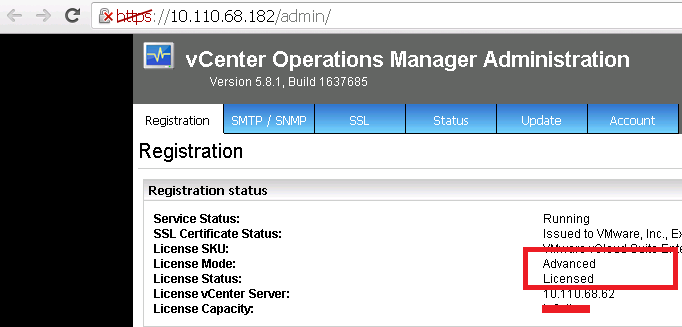
2- Under the Registration TAB, you will have the option to do the following:-

- Check License Status

- Select the kind of metrics you want to collect Balanced or Full.(VMware Recommneds Balanced - Read the following VMware KB on this topic)

- You can do a Register, Un-register, Update or Find a Linked vCenter server.

- You can also register a VCM (VMware Configuration Manager) instance on this screen.


2- Click on the SMTP/SNMP tab to enable the SMTP and SNMP settings and configure the details as shown in the screenshot below. Enabling the SMTP settings are important if you want vCOps to send alerts and reports to desired recipients.


3- Click on the SSL tab and you can upload a certificate if you wish to.


4- Click on the Status tab. Here you can Start/Stop/Restart the vCOps Services. You can check the status of the vCOps service and also download a diagnostic bundle if you wish to do so or if VMware Support asks you to do so.


5- The Update Tab is important as it allows you to Add 3rd party adapter and also update the vCOps vAPP from one version to another. These upgrades are done using .pak files which can be browsed for and updated by a click of a button.


6- The last TAB here is the account tab which can be used to change the admin and root passwords if desired by the vCOps Admin.


With this I will finish this post. In the next article I will help you configure some advanced settings which will help you optimize your vCOps deployment. Stay tuned for more goodness on vCOps.


Share & Spread the Knowledge!!


Thursday, March 20, 2014

Part 5 - Licensing vCenter Operations Manager!

In the last part of this series, I gave you instructions on how to do the first time registration of vCenter Operations Manager and integration of vCenter Server with vCOps. In this post we will have a look at the steps required to license the vCenter Operations Manager.

While I will give you steps on configuring the license in this post, I will leave you with the following links which will help you on how vCenter Operation Manager is licensed as a product suite.

vXpress: How to License vCenter Operations Manager (vCOPS) 5.6 !!


Here are the steps to License.

1- Login to vCOps Admin UI http://<admin ui IP>/admin/. By default you will be licensed for vCOps Foundation Edition. vCenter Operations Manager foundation edition comes free of cost and customers can use it if they just want to gauge the health (Workload, Anomalies & Faults) of the virtual infrastructure. 


2- Now Login to the vCenter Server which we registered with vCOps in the previous post. If you have multiple vCenter Servers in your environment, you can License the vCOps on any one of the vCenter Server. For redundancy you can do the same on atleast 2 vCenter Servers so that vCOps stays licensed in case their is a connectivity issue between one of the license carrying vCenter Server.

In the vCenter Server Click on Home -> Licensing -> Asset. You will notice the vCOps in an unlicensed mode here.


3- Right click on this and Manage vSphere Licenses.


4- Enter the license keys and click on Add License Keys and Click Next.


5- Select Show Unlicensed assets, click on Solution and then select the license which you added in the previous step to license vCOps. Click on Finish.


6- Login to the Custom UI again and now you will see that your instance of vCOps is licensed and ready to go :-)


With this I will close the article. In my next post I will take you through the basic configuration of vCenter Operations Manager on the Admin UI. Stay tuned!!


Share & Spread the Knowledge!!


Wednesday, March 19, 2014

Part 4 - Configuring vCenter Operations Manager Post Deployment!

In my last post, I gave you step by step instructions on deploying the vCenter Operations Manager vAPP. Once the vAPP is powered on after deployment, you need to do the initial configuration on the vCOps Admin UI to have the vAPP integrated with your vCenter environment.

Without further ado let's start the configuration.

1- Click on the vCOps vAPP in the vCenter and click on the summary tab. Under summary tab click on the hyperlink highlighted below. This will re-direct you to the vCOps admin page. 

Alternatively, you can also open a web browser and give the IP of the UI VM with "/admin" and you will get on the admin page.


2- You can see the URL which I spoke about in the previous step here in this screenshot. Use the following credentials to Login to the Admin UI.

username - admin
password - admin


3- Provide the details of the vCenter where the vCOps vAPP has been deployed. This is just to keep a track of vCOps vAPP demographics and is an optional step. Verify the Analytics VM IP address and click on Next.


4- Click on Yes to accept the self generated certificate.


5- On the next screen you can reset the admin account and root account password. With vCOps 5.8 onward this password has to be a special password. for e.g. Dashboard@123

The default password for the root account is vmware

The root account here can be used to login to the UI VM or Analytics VM via ssh or console for troubleshooting, advanced customization etc.


6- Now comes the part where the vCenter which you need to monitor needs to be specified. We will pause here to discuss the Registration User and Collector User.

Registration User - If you plan to monitor ALL the resources of a vCenter Server then you can just use the registration user which has atleast Read Only rights on the root level of the vCenter. In such a situation collector user is not required.

Collector User - If you plan to monitor only a subset of your vCenter environment, then you should use the Collector user along with the Registration user. While the the Registration User is used for registering the vCenter Server, the Collector user will enable vCOps to only populate and monitor the Objects on which the collector user has atleast Read Only rights. Their is a VMware KB on this topic.

I will not enter the Collector User as I need to monitor everything and click on Next.


7- If you upgrade from VMware Capacity IQ to vCOps you will get an option to import the old data from your previous install. (This is a rare sight though).


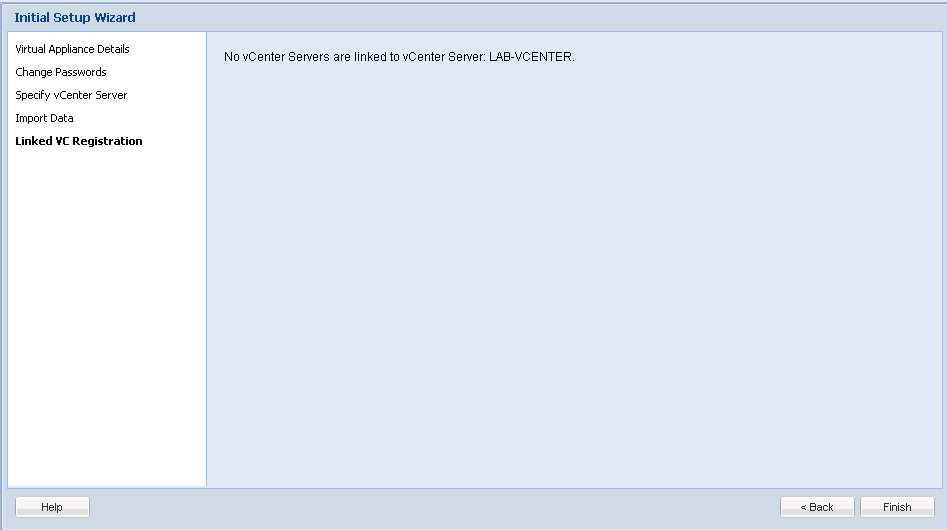
8- On the Next screen , vCOps will automatically find all the Linked vCenter Servers if there are any. You would have the option to register the Linked VCs here. 

In case you have a non Linked VC which you want to register with your vCOps, you can finish this wizard and  register additional VCs on the Admin UI. On the other hand if you want to avoid a Linked VC from registration, you can leave it as it is and click on Finish.


It will take around 2 to 5 minutes for this registration to complete and you are done.


I will close this post now. Stay tuned for the next part where I will give you a tour of vCenter Operations Manager Admin User Interface. Stay tuned :-)


Share & Spread the Knowledge!!


Part 3 - Deploying vCenter Operations Manager vApp!

In the last part of this series, I gave you an overview of the pre-requisites for deploying vCenter Operations Manager. We also fulfilled one of the pre-requisite of creating an IP Pool. Now we will move one step ahead and deploy the vCOps vAPP in this post.

Let's see the step by step instructions on deploying vCenter Operations Manager.

1- On your vCenter Center Server Click on File - > Deploy New OVF Template.


2- Browse to the OVF template and click on Next.


3- Verify OVF template details and click on Next.


4- Click on the Accept button on the EULA screen and click on Next.


5- Give a name to the vCOps vAPP, select the appropriate location and click on Next. Remember it has to be in the datacenter where you have configured the IP Pool (See my previous post)


6- Deploy the configuration as per the Size appropriate to your environment & click on Next.


7- Select the appropriate cluster and click on Next.


8- Select the relevant resource pool and click on Next..


9- Select the datastore for deploying the vAPP and click on Next (Thick Provisioned recommended in case of VMFS).


10- Select the appropriate port group and click on Next. This is the same port group which you associated the IP pool with while creating the IP Pool.


11- Select the IP allocation policy as Fixed and click con Next.


12- Select the appropriate Timezone & assign the static IPs to UI and Analytics VM.


13 - Finally review the entire configuration, check the power on post deployment check-box and click on finish.


14- It will take around 10 minutes for this vAPP to deploy and another 5 minutes or so to power and be ready for use.


With this I will close this post. In my next post, I will share the details on how to do the first time configuration of vCenter Operations Manager.


Till then.. Stay tuned.


Share & Spread the Knowledge!!


Monday, March 17, 2014

Part 2 - vCOps Installation - Creating an IP Pool!

This article trails from the previous part where I introduced this series which would talk about Installation, Configuration, Best Practices and Optimization of vCenter Operations manager. This is not a substitute to the product documentation but an effort to share some of the learning's & experiences which I have gained while working on this product.

With this part I will talk about the installation of vCenter Operations Manager. Let us quickly look at the pre-requisites and then we begin the installation.

Prerequisites

1- Download the VMware vCenter Operations Manager 5.8.1 in Virtual Appliance (latest at the time of writing this post). You can either download a licensed or trial version from vmware.com

2-  You need a couple of Static IP addresses, one for UI VM and another one for Analytics VM.

3- You need Compute and Storage resources as per the sizing guidelines which I shared in my previous post.

4- You need a running vSphere Infrastructure with vCenter Server - of course :-)

5- You need an IP Pool which is used for giving IP Addresses to a vApp construct. vCOps Virtual Appliance is a pair of 2 VMs which are pre-packaged as a vApp. You can read more about it here.


Create an IP Pool

1 - In the vCenter Server click on Datacenter where you need to the deploy the vCOps Appliance and click on the IP Pools Tab.


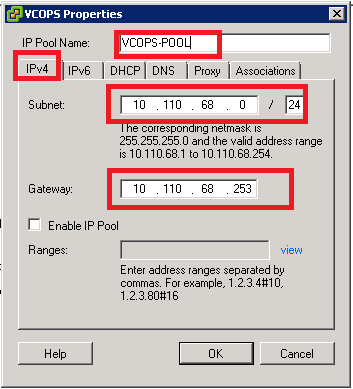
2- Click on the Add button to add an IP pool. Provide the IPv4 details such as Subnet, Mask Bits and Gateway. Use IPv6 Tab if you are having that IP addressing. DHCP is NOT recommended.


3- Click on the DNS tab to configure the details shown below.


5- Click on Associations Tab to associate this IP pool with the VM portgroup which will serve the IP addresses which will be used by vCenter Operations Manager.


6- Click on OK and review the summary of the IP Pool.


Note - So far you do not have to assign the IP addresses. We will assign IP addresses during deployment of the vCOps vAPP in the NEXT PART.


Share & Spread the Knowledge!!

Sunday, March 16, 2014

Part 1 - Optimizing vCenter Operations Manager Deployment!

Off late I have been doing a number of projects on vCenter Operations Manager. Although their are available set of best practices and recommendations available in the VMware vCOps documentation, I wanted to share some of my experiences from the field in terms of deployment requirements and configuration considerations on vCenter Operations Manager 5.x.

I will go into each consideration along with the steps on how to implement the same in a multi-part blog series with this being the Part 1. Since this post is just to set the context , I will give you some insights on basic deployment considerations in this post and move on to certain advanced considerations in the posts to come.


This series can be considered as a learning platform for vCenter Operations Manager as an Enterprise Performance Management & Capacity Planning Solution for a Software Defined Datacenter. Hence, the posts would be targeted to both the newbies and the people who are well versed with the product. 

With this post let me point you to a couple of articles which I wrote in the past to give you an introduction about vCOps and the sizing considerations for deploying vCOps.


vCenter Operations Manager - Solving Performance, Capacity and Configuration Problems!! - This post gives you a brief overview about Why vCOps was created and What can it do for you!! I would highly recommend you read this if you are a newbie.
Another important one form a deployment point of view would be this post : Right Sizing vCenter Operations Manager vApp For Efficient Performance !! This would help you understand the basic resource requirements for the vCOps vAPP for your infrastructure. At this point you should also have the links to official VMware KB articles and guides which speaks about sizing the vCOps vAPP for monitoring the Virtual Infrastructure, other VMware Solutions such as VMware View and third party monitoring solutions which can send in feeds to vCOps for using the Analytical capabilities of vCOps which makes it a unique proposition.


In addition to above introductory articles, you can also have a look at the page dedicated to vCOps on this blog - vCOps Resources on vXpress. I keep updating this page as I write articles on vCOps and you can book mark this page if you like. Lastly, I would also want you to book mark a page created by Lior Kamrat who himself has written some excellent articles on his blog IMALLVIRTUAL.COM . He has a page on vCOps which has all the great resources in vCOps from all the renowned bloggers in the VMware Community. This will help you a lot.
With this I will close this article and soon will come out with the Part 2 of this post which will take you one step closer to the world of vCenter Operations Manager. 
Till then.. Stay tuned :-)

Share & Spread the Knowledge!!