Showing posts with label vXpresss. Show all posts

Sunday, October 7, 2018

How to embed vRealize Operations dashboards for easy information sharing.

One of the most πŸ’–lovedπŸ’–feature of vRealize Operations 7.0 has been the new capability of sharing dashboards with URL. The following blogpost explains the options around dashboard sharing. In this post, I wanted to share a quick example on how you can use the embed feature of dashboard sharing.

Use Case - The use case is pretty obvious. In organizations where vRealize Operations data can be consumed by different departments, BUs, groups etc, the Operations admin can provide embed code with specific dashboard URLs to the consumers of this dashboard. This embed code can be used to embed the dashboard in an external webpage, confluence page, sharepoint, through a simple iframe.

Let's look at an example. We will use a Billing App dashboard which I have created to monitor the CPU Contention and Disk Latency on all the virtual machines which make up the billing application in my organization.


Let's click on the share button and get the embed code for this dashboard. In case of embedding dashboard, I would recommend that you keep the link expiry option to Never Expire for obvious reasons :-)


In my case, I want to embed this dashboard in this blogpost itself. See for yourself. This is a live dashboard from our lab :-)

P:S - I am able to publish a live dashboard on a public blog because my vRealize Operations instance is running on VMware Cloud on AWS. πŸ˜‰πŸ˜ŠπŸ˜‹

Note - You would require to accept the certificate for my vROps instance to see this dashboard in your browser. Click on this link to access the dashboard directly once and then it will be available to view in this blog post - https://35.161.24.145/ui?t=faasnilnyk#b45vkg0q2f

Go ahead and hover over the metric charts and see the live data of all the billing VMs. You can also see historical data by selecting the calendar icon in the widgets.. πŸ‘πŸ‘


Hope this posts helps you undertsand the power of dashboard sharing with vRealize Operations and also allows you to share meaningful data with your peers in your oragnization.

Share and Spread the knowledge.


Friday, July 20, 2018

My VMworld 2018 Plan.


As I type this I feel the guilt of not being able to blog for some time now. As most of you know, I have moved into the Product Management role for vRealize Operations, the role has sucked me into the wave of continuos enhancements which we are doing into the product.

A tremendous amount of time and effort went into closing vRealize Operations 6.6 and 6.6.1 and planning, implementing and releasing vRealize Operations 6.7. I am extremenly excited to see the success of vRealize Ops 6.7 and happy to share that we have not stopped but only doubled down our investments in making Operations simple and immenstly impactful to your IT environments, people, processes and ultimately business.

As always, VMworld would be the place where we will be able to share where we are headed and I thought it would be a good idea to share my VMworld Vegas schedule with you all. If you are preparing your VMworld agenda and looking at what sessions to attend, then here is a quick list of sessions I will be presenting during Breakouts and TAM sessions along with my immensely talented co-presenters :


SESSION INFO

Session ID: MGT2552BU
Submitted to: Both events
Session Type: Breakout Session
Session Title: Troubleshooting Made Easy
Speakers 
Chris McClanahan, VMware (Speaker, Submitter)
Sunny Dua, VMware (Speaker)

Session ID: MGT2621BU
Submitted to: Both events
Session Type: Breakout Session
Session Title: From VI Admin to Cloud Ninja: Top 5 Skills Needed in the Digital Age
Speakers 
John Dias, VMware (Speaker, Submitter)
Sunny Dua, VMware (Speaker)

Session ID: MGT2934BU
Submitted to: Both events
Session Type: Breakout Session
Session Title: Optimize Workload Cost and Performance Using the vRealize Suite
Speakers 
Helen Michaud, VMware (Speaker, Submitter)
Sunny Dua, VMware (Speaker)

Session ID: TAM3779U
Submitted to:
Session Type: TAM Customer Central Deep Dive
Session Title: vRealize Operations 7.0 - Foundation for Self Driving Operations
Speakers 
Kameswaran Subramanian, VMware (Speaker)
Sunny Dua, VMware (Speaker)

Session ID: TAM3841U
Submitted to:
Session Type: TAM Customer Central Deep Dive
Session Title: Intent-Based Workload Optimization with vRealize Operations
Speakers 
Chima Njaka, VMware (Speaker)
Sunny Dua, VMware (Speaker)


With this post, I also promise to come back to my regular cadence of blogging to ensure that I can always have an alternative career of a writer if the world decides to give up on IT :-)

See you at VMworld!!! 😁😁😁


Thursday, April 12, 2018

The return of the dark theme with vRealize Operations 6.7

With the recent release of vRealize Operations 6.7, one of a most awaited feature which has been re-introduced is the concept of themes.

In the past releases of vROps, you could change the entire user interface into a Dark mode. This feature has been re-introduced and can be set by a user through preferences.

To enable the dark theme:

a) Login to vRealize Operations.

b) Click on the user icon and Preferences


c) Under the Color Scheme select "Dark Theme" and click on Save.


d) The screen will reload and within seconds your entire vRealize Operations screen will be in the dark mode.


Here are a few previews of vRealize Operations 6.7 with dark theme:


Click here to download your copy of vRealize Operations 6.7.


Monday, July 3, 2017

Part 8 - vROps 6.6 : Creating queries with Metrics & properties using Metric Groups

"Troubleshooting is an Art and not Science"

I remember this statement from the time I started my career as a desktop support engineer. Fast forward 14 years to today's date and we all know that the statement still holds water!

While no tool in the world will give you a 100% accurate root cause analysis, it is important that you have a tool which helps you with the rule of elimination in your troubleshooting process. If you have quick and easy things which you can check and move forward, this would definitely make the troubleshooting process faster and reduce the time required to drill down to the root cause.

Queries in vROps is one such way by which you can easily reach from the source to destination in the troubleshooting process.

With the release of vRealize Operations Manager 6.6, you can now create metric groups which not only use metrics, but can also consist of properties. Using the concept I created some new groups which work as queries. 

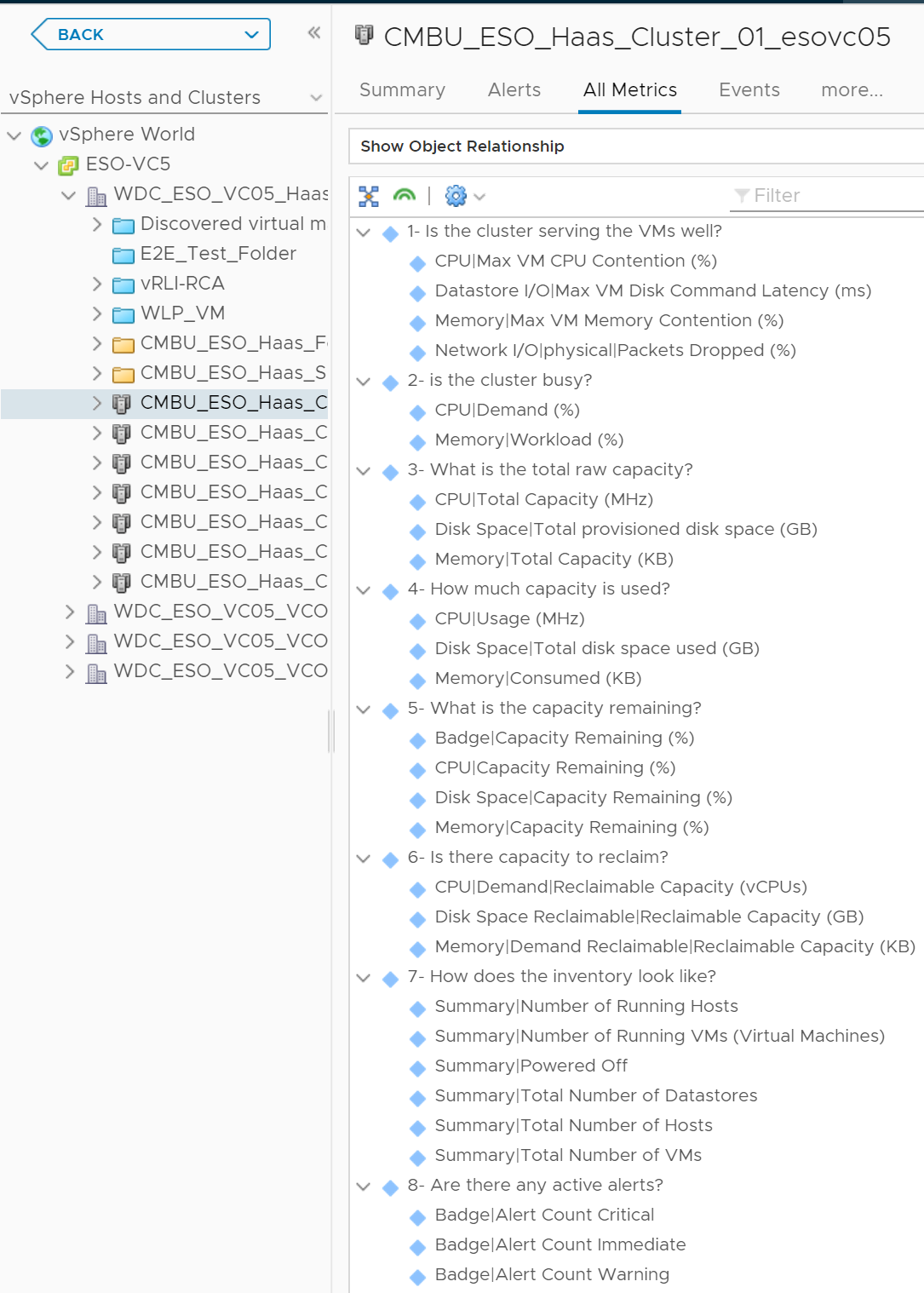
These queries can help answer simple questions through vROps metrics which can help an administrator significantly while they are in a fire fighting mode to quickly find and solve problems. Here are the custom queries which I have created in my environment, you can use the same and make your troubleshooting process quicker and simpler. For ease of use, I have created queries for all the key Object Types. You can see the Object Name, Queries and the Metrics which make that query:

Datacenter


Cluster


Hosts


Virtual Machines


These are just examples of what I created for myself. You being an application, database or OS experts, you can use any metrics collected by vROps and create meaningful queries.

Once you have the desired queries you can easily double click on them and look at the key metric and properties with a single click. Hopefully this will help you with your troubleshooting style and decrease the mean time to resolution.


Share & Spread the Knowledge!!


Friday, June 30, 2017

Part 7 - vROps 6.6 : Virtual Machine Inventory Summary Report


Welcome back to the what's new series for vRealize Operations Manager 6.6. While in the previous parts, we have been talking about the dashboards, with this post, I do want to highlight some of the out of the box reports which can help administrators quickly with their day to day activities. A very basic use case of reporting involves a VI Admin to keep a track of all the virtual machines in the environment and share a regular report with people within the organization about the basic configuration and whereabouts of the Virtual Machines.

With vROps 6.6, you can find a useful out of the box report for this purpose. The report is called :

Virtual Machine Inventory Summary

You can find this report under the Reports section of the new Clarity User Interface. Here are the steps to fetch this report.

1- Log in to your vROps instance with a user with privileges to run reports.

2- Click on Dashboards Menu.

3- On the Navigation Pane click on Reports.

4- Use the search filter to search for a report using the name - "Virtual Machine Inventory Summary".


5- Once you click on the Run Report button highlighted in red, you get a choice to run this report against a particular construct. This could the vSphere World, a vCenter Server, a particular cluster or even a custom group you want to report on.


6- Click on OK to generate the report.

7- You can view the report in the Generated Reports section and download a PDF version or a CSV file based on how you would like to present this data.


Once you download the report, you will be able to see all the fields which would provide you all the crucial details about your virtual machines. Here is a quick look at all the fields which are generated in this report. Click to view the image in full screen:


With this report you can cater to multiple use cases by scheduling these reports for target audiences using the simple report scheduling method in vROps. Some of the basic use cases where this report can be used are:


Use Cases:

a) Keeping an inventory of all or subset of the virtual machines in your environment.

b) Reporting this data to VM or Application Owners.

c) Virtual Machine Life-cycle Management

d) Keep a track of configuration inconsistencies. For eg old VMware Tools Versions

e) Tracking OS versions for licensing needs.

and many more.......


So go ahead pull up the inventory summary easily with vROps 6.6 and use the data to improve your virtual infrastructure and make your day to day work easier.


More to come.. Stay Tuned!!


Sunday, May 14, 2017

Take a Lab & Win a Drone!

While we all know that hands on lab at VMware is one of the best place to learn about VMware products, the cloud management business unit (CMBU) at VMware will take your experience of HOL at a completely different level.

I am talking about the levels at which drones fly 😜😜😜😜

Last day to register is May 19th.. So hurry..

Here is the link for more details - http://www.vmware.com/promotions/2017-hol-drone.html 

Competition Rules and Regulations

  • Entrants must take any eligible Hands-On Lab in order to be considered for the prize.
  • The contest runs from April 19 to May 19, 2017.
  • The contest is for US residents only.
  • Participants must agree to the terms and conditions of the contest when signing up for a lab.
  • The winner will be announced on the VMware Hands-On Labs Blog.

vROps Webinar Series 2017 - Part 2- Full Stack monitoring with vRealize Operations Manager

Time to share the recording of the second episode of the vROps Webinar Series 2017. This time around we were joined by Craig Lee and Brock Peterson from Blue Medora to talk about "Full Stack Visibility" which vROps can provide by using various extensibility solutions.

We discussed the following use cases and demonstrated them in live environments:

Use Case 1 - Full-Stack vSphere Monitoring. From application to Infrastructure.


Use Case 2 - Amazon RDS Workloads. Monitoring public cloud workloads with vROps.


Use Case 3 - vROps Extensibility. Metrics, Logs and Costing come together along with other 3rd party extensibility options.


Special thanks to Blue Medora for participating in the Webinar Series and contributing to the vCommunity.

We would highly appreciate if you could spend 30 seconds to fill up this quick and simple survey to provide us your feedback. You can also request topics of your choice through this survey.


Note : It is recommended that you watch the video in HD quality for a great experience.

Share & Spread the Knowledge!!


Monday, April 3, 2017

vROps Webinar Series 2017 - Part 1 - What's New with vROps 6.5


Time to share the recording of the first episode of the vROps Webinar Series 2017. This time around, Simon and myself spoke about the latest release of vRealize Operations Manager. We spoke about almost all the new features which were introduced with this version and went into some of them in detail. Like always we rounded up the session with Live Demo of the new features for our audiences.

We introduced a feedback form which can be used to provide your feedback in general and also request topics on which you would want us to focus this year.

Would appreciate if you could spend 30 seconds to fill up this quick and simple survey.


Note : It is recommended that you watch the video in HD quality for a great experience.

Share & Spread the Knowledge!!


Wednesday, March 29, 2017

Automatically upgrade EPOps Agents using vROps 6.5

During the first episode of vROps Webinar Series, someone asked a question about how to upgrade the end point operations agents automatically using vROps UI. The feature is available with vROps 6.5 admin UI. The vROps 6.5 documentation is pretty comprehensive and one can easily find the steps here.


Here is the extract from that link with a simple procedure:

Upgrade the Endpoint Operations Management Agent:

You can upgrade the 6.3 or 6.4 version of an Endpoint Operations Management agent to a 6.5 version from the vRealize Operations Manager administration interface.

Prerequisites:
  • Download the Endpoint Operations Management PAK file.
  • Before you install the PAK file, or upgrade your vRealize Operations Manager instance, clone any customized content to preserve it. Customized content can include alert definitions, symptom definitions, recommendations, and views. Then, during the software update, you select the options named Install the PAK file even if it is already installed and Reset out-of-the-box content.

Procedure:
  1. Log into the vRealize Operations Manager administration interface of your cluster at https://IP-address/admin.
  2. Click Software Update in the left panel.
  3. Click Install a Software Update in the main panel.
  4. From the Add Software Update dialog box, click Browse to select the PAK file.
  5. Click Upload and follow the steps in the wizard to install your PAK file.
  6. After Step 4 of the install is complete, you return to the Software Update page of the Endpoint Operations Management administration interface.
  7. A message that indicates that the software update completed successfully appears in the main pane.

If any of the agents have not installed successfully, rerun the upgrade steps and ensure that you have selected Install the PAK file even if it is already installed in the Add Software Update - Select Software Update page.

What to do next

You can view the log files from the vRealize Operations Manager administration interface > Support page.


Hope this helps!!


Wednesday, December 14, 2016

VMware releases the SDDC Management Health Solution 2.0

Back in the month of September, I wrote about the VMware SDDC Health Solution which would help you deploy a unified management pack within vROps to monitor the health of your SDDC Management Stack. During that first release, the product was limited to monitor vCenter and vRealize Operations Manager. I did mention that it was a big step and if VMware could continue to invest on adding the rest of the solutions of the management stack into this unified management pack, it would help provide a Single Pane to SDDC customers to monitor the health and performance of there SDDC Management Stack which is huge.

The engineering team at VMware just took this to the next level by releasing the version 2.0 of this management pack today.

In its new Avatar, the management pack would now support the following components of the Software Defined Data-center.

  • VMware vCenter 
  • VMware vRealize Operations Manager 
  • VMware vRealize Automation 
  • VMware vSAN 
  • VMware vRealize LogInsight
  • VMware vRealize Business for Cloud
  • VMware NSX for vSphere

The management pack now supports 5 additional components and it covers mostly everything you would use in a SDDC Management Stack. While I have used this and was involved in Beta I am ready to install the GA build in my environment and play with it. Here is the overview of the solution from solution exchange.


Overview

VMware SDDC Health Solution provides Single pane of glass towards the SDDC Management stack and provides health (availability & product effectiveness) and configuration.

It provides validations against

- vSphere Hardening Guide
- NSX Hardening Guide


Highlights
  • SDDC Health Management : Overview
  • SDDC Health Management : Historical Trend
  • Health & Configuration based alerts

Description

SDDC Health solution bundles the capability of monitoring various application components of the SDDC management stack. The intent of the Solution is to provide Single Pane of Glass to isolate the health problems in the applications running on the SDDC management plane.


New SDDC Management Dashboard which includes the following:
  • SDDC Health Management : Health Overview
  • SDDC Health Management : Historical Trend
  • SDDC Health Management Apps : Infrastructure View
  • SDDC Health Management Apps : Service View
  • Health based alerts
  • Config based alerts
  • Top Recommendations 

Go get it!!


Wednesday, November 23, 2016

#vROps Webinar Series – Part 11 – Getting more out of #vROps with PowerCLI

Another month has gone and Christmas is now looming large! It has been extremely busy but we still want to continue with the momentum of webinar series getting to the business end of the year. This time around we will talk about getting more out of vRealize Operations Manager using PowerCLI.
This session we will be joined by Vinith Menon who will show us all kinds of PowerCLI goodness.
So without further a do, save the date in your calendars and join use for the next episode of vRealize Operations Webinar Series 2016.
Day & Date : Friday, 25th November 2016
Time : 1:30 PM – 2:30 PM (SGT)
Event : vROps Webinar 2016
Topic : Part 10 : A Deep Dive into vROps and PowerCLI
Speakers : Simon Eady / Sunny Dua / Vinith Menon
Due to last minute constraints we are using Xtravirt’s Webex so a big thank you to them for stepping in and help us
WebEx Link : Join WebEx Meeting
NOTE – Don’t forget to mark your calendars by saving the Date!! Feel free to forward the invite to anyone who might be interested. It’s open to all!!
Sharing & Spread the Knowledge!!

Monday, September 19, 2016

vROps Webinar 2016 - Announcing Part 9 : What's New with vRealize Operations Manager 6.3

It's the time of the month when I would like to invite you to join the next episode of our year long vROps Webinar Series. As we move towards winters, we would like to take a zoom out view at the vRealize Operations Manager solution with a What's New Episode. For the past 8 months, we have gone pretty deep into most of the product features and I believe it is time when we review the product in it's current form and shape. In my opinion, this could not be done better than sharing about the new features & functionalities available in the latest version of vRealize Operations Manager.
While throughout the journey of this series we have discussed various versions of the product, this time around our focus would be on vRealize Operations 6.3.

There are a number of blog articles available which talk about the new features available in the product, however with this episode we will look into the new features in action through a Live Demo as always. I think it is important to see the new features in action to understand the use cases associated with those new features.

So without further a do, save the date in your calendars and join use for the next episode of vRealize Operations Webinar Series 2016.

Day & Date          : Thursday, 29th September 2016

Time                     : 1:30 PM - 2:30 PM  (SGT)

Event                    : vROps Webinar 2016

Topic                     : Part 9 : What's New with vRealize Operations Manager 6.3

Speakers               : Simon Eady / Sunny Dua

WebEx Link          : Join WebEx Meeting


NOTE - Don't forget to mark your calendars by saving the Date!! Feel free to forward the invite to anyone who might be interested. It's open to all!!


Sharing & Spread the Knowledge!!

Wednesday, September 7, 2016

vRealize Operations 6.3 brings VMware SDDC Health Solution

With vRealize Operations 6.3 out there for close to 3 weeks now, I have seen a number of posts around the new features. What I have not seen being spoken about is this hidden gem called "VMware SDDC Health Solution".

I believe this is the first step towards, monitoring the VMware SDDC Stack using vRealize operations, which goes beyond monitoring performance, utilization or capacity. This solution helps you go deep into the various roles of the management stack for application level monitoring. To begin with, the solution has been rolled out as a Version 1.0.

With this first release, the SDDC Solution will help you monitor the key services of vRealize Operations Manager and vCenter Server. It will provide a fancy out of the the box dashboard which will help you monitor these services and some out of the box, pre-configured alerts which will help you troubleshoot issues when they arise. The hope is that VMware will take this solution with the future releases to other components of the SDDC stack, inclusive of the entire management and automation stack to have a full fledged monitoring solution for the entire SDDC stack out of the box. While it is possible to monitor the entire stack today, but having a solution which can bring everything at one place with minimal effort is GOLD... I believe this is a step in that direction and I am ready to implement the solution for my customers.

Here is the solution brief:

Overview

VMware SDDC Health Solution provides Single pane of glass towards the SDDC Management stack and provides health, efficiency, validation and configuration. VMware SDDC Health Solution Version 1.0 supports the following:
  • vCenter health
  • vRealize Operations Manager health


Highlights
  • SDDC Management Apps Health Overview
  • SDDC Application Components Overview
  • SDDC Management App Alerts

Description


SDDC Health solution bundles the capability of monitoring various application components of the SDDC management stack. The current version of SDDC Health solution combines the Health aspects from the vRealize Operations Manager and vCenter Server Appliance in to a Single dashboard.
Compatibility
VMware SDDC Health Solution is compatible with:
  • VMware vCenter Server 5.5
  • VMware vCenter Server 6.0
  • VMware vRealize Operations Manager 6.3
Resources


The installation and configuration is available on the user guide and is pretty simple to follow. So go ahead and get on the journey of closely monitoring your SDDC environments.


Share and Spread the Knowledge...


Wednesday, April 27, 2016

vRealize LogInsight Upgrade Fails During /etc/hosts Pre-Upgrade Validation.

All this while I have been blogging about vRealize Operations Manager, however the more I work with LogInsight, the more I fall in love with the product and its fantastic capabilities. The good news for me is that both vROps and LogInsight work beautifully together and hence I have another area where I can explore and learn and enhance my capabilities around managing and monitoring the SDDC platform and it's tenants.

With that, let me quickly jump into what I want to share. 

While trying to upgrade the LogInsight 2.5 GA built to LogInsight 3.0 for a customer, the process failed during the pre-upgrade check with the following error on the GUI


UpgradeError: "2.5GA Log Insight deployment didn't pass pre-upgrade validation: localhost used for host ;127.0.0.1 in /etc/hosts. Please edit /etc/hosts and remove the string localhost from all non-loopback addresses."


I logged into the LogInsight Master node using the root credentials and browsed to the following directory using the command

cd /var/log/loginsight

I looked up into the upgrade.log and found the same error in the upgrade.log as well. Based on the advice given in the error log, I checked the /etc/hosts files and found that someone had played around with the entries in this file. I immediately referred to the Bible Blog on LogInsight by Steven Flanders and found this article which talks about the importance of /etc/hosts file. 

While browsing through VMware KB, I found this KB which talks about how this entry should be as per the recommended practices from OS and Application perspective. This is how the entry should be on all the nodes (if you have more than one) in the /etc/hosts file.

Example 

10.11.12.13  <HOST FQSDN> <HOST CNAME>
127.0.0.1    localhost


Once configured on all the nodes, restart the loginisght service using the following command

service loginsight restart

Attempt the upgrade again and you will be successful this time. I wanted to document this and bring all of this learning together, so that you can benefit out of this and save time during upgrades :-)


Share and Spread the Knowledge!!


Wednesday, March 2, 2016

vROps Backup - DO NOT quiese the nodes

vRealize operations manager is quickly becoming the backbone of your SDDC and it is important that you always have a sound backup methodology for vROps to ensure that you can recover from a disaster.

The backup of vRealize Operations Manager cannot be done through a regular agent based backup. VMware supports only a specific way to backup the appliance. You need to use vStorage API for Data Protection (VADP) to have a successful backup. This backup methodology leverages the vSphere snapshot mechanism which allows the base disk of a virtual machine to be backed up while the current I/O is written on a redo log. Once the backup is completed, the redo log is committed to the base disk and you have a successful backup.

It is important to remember that there are some basic guidelines given by VMware pertaining to the backup of vROps and it is highly recommended that they are followed in order to avoid any outages on vROps and a proper restore in case of the disaster.

At this time I would like to point you to this document.

Quoting from this document:


To minimize vRealize Operations Manager downtime and data loss in an event of failure, back up on a regular basis. In this way, if your system fails, you can recover it by restoring to the last full or incremental backup.
You can backup and restore vRealize Operations Manager single or multi-node clusters by using vSphere Data Protection or other backup tools. You can perform full, differential, and incremental backups and restores of virtual machines.

Note
All nodes are backed up and restored at the same time. You cannot back up and restore individual nodes.

Be aware of these prerequisites when you back up vRealize Operations Manager systems by using any tool:

Disable quiescing.
Verify that all nodes are powered on and are accessible while the backup is taking place.
Be aware of these guidelines when you back up vRealize Operations Manager systems by using any tool:

Use a resolvable host name and a static IP address for all nodes.
Back up the entire virtual machine. You must back up all VMDK files that are part of the virtual appliance.
Do not stop the cluster while performing the backup.
Do not perform backup while dynamic threshold (DT) calculations are running because this might lead to performance issues or loss of nodes.
It is important to note that Quiescing Should be disabled to ensure that you do not kill the Gemfire layer which is an in-memory database in vRealize Operations.  A few days back I wrote about a whitepaper which which helps you configure the backup of the entire vCloud Suite using Netbackup.
I would highly recommend you follow the principles defined in this white paper to have a successful backup and more importantly a successful restore of vRealize Operations Manager.

In case your backup software does not have a way to create a backup policy with Non-Quiesced snapshot, you can use the steps mentioned on the following guide to disable quiescing at the Virtual Machine level.

http://pubs.vmware.com/vrealizeoperationsmanager-61/index.jsp?topic=%2Fcom.vmware.vcom.core.doc%2FGUID-6159E2FA-B6C5-4580-AC93-C912CFEBF2CB.html 

Special thanks to my colleague Dean Ravenscroft for pointing out to this limitation of some of the backup software and the workaround. 
Share & Spread the Knowledge...